
A practical guide · Updated October 2026
How to take several screenshots and paste them all at once on a Mac.
Your Mac’s clipboard holds one copy at a time, so each screenshot you copy replaces the one before, and ⌘V pastes only the last. To paste several at once, save them as files and copy or drag them together from Finder, or let SnapTrellis keep them as you capture and copy them all as one numbered image. We make SnapTrellis, so we’re not neutral; the free way comes first.
Quick answer: Take each screenshot with ⌘⇧4 so it’s saved as a file, select them all in Finder, and drag them into your message together, or copy them with ⌘C and paste with ⌘V if the app accepts them. Copying them one by one with ⌃⇧⌘4 won’t work, because each copy replaces the last. In SnapTrellis, every capture joins a group, and ⌥⇧C copies the whole group as one numbered image, ready to paste once.
Why only your last screenshot pastes
Holding Control with the screenshot keys (⌃⇧⌘4) copies a screenshot instead of saving it, but each new copy replaces the last: take three that way, and ⌘V pastes only the third. The first two were never saved as files, though Clipboard history, if it’s turned on, may still have them. SnapTrellis copies each capture the same way, but it also keeps every one, in order, in a group.
1. The free way: save them, then copy them together
Free and built in. Fine for a few screenshots.
- Take each screenshot with ⌘⇧4, without Control, so it’s saved as a file: on the Desktop, with the date and time in its name, unless you’ve chosen another place under Options → Save to in the Screenshot toolbar (⌘⇧5).
- On the Desktop or in a Finder window, click the first screenshot, then Command-click the others.
- Drag them into your email or message together; Mail and Messages both take pictures dragged in from Finder. Or press ⌘C, which copies every selected file, click in the message, and press ⌘V. If an app won’t take the paste, drag them instead.
- Check the order, and add a line about what to look at, like “1: the error. 2: my settings.”
Rather paste as you go? Copy one with ⌃⇧⌘4, paste it, then take the next. Either way, they arrive as separate pictures; in Messages, four or more show up as a stack. To send one picture instead, join them first with the Shortcuts app’s free Combine Images action: here are 3 ways to combine screenshots on a Mac.
Copied a few already? Clipboard history
On macOS Tahoe 26 and later, Spotlight can keep a history of what you copy, including pictures. Press ⌘Space, then ⌘4, select an earlier screenshot, press ⌘C, and paste it where you want it. It brings them back one at a time, not all at once, and only for a limited time. If it isn’t turned on yet (Spotlight asks the first time you open it), it won’t have your earlier copies.
2. Several screenshots, one paste: SnapTrellis
Free for 14 days, then $19.99 once. Best when you often send a few screenshots together.
- Choose File → New Group… and name it after what you’re sending, like “How to switch to weekly emails.” The name becomes the title on top. Or skip this: unless you’ve already chosen a group, captures go into an automatic one named for the app and time (shown under Capturing into), and the image has no title.
- Press ⌥⇧4 and drag over what you want in the first screenshot. It’s copied right away, so ⌘V still pastes it on its own, and it joins the group in the Trellis, the panel at the side of your screen. To label it, click the card beside it, type, and press Return.
- Repeat for the others. If the next one is in the same spot, ⌥⇧R captures that area again without dragging.
- Press ⌥⇧C, or click Merge on the group. The whole group is copied as one image, each screenshot numbered, with your labels.
- Click in your email, chat, or ticket and press ⌘V once.
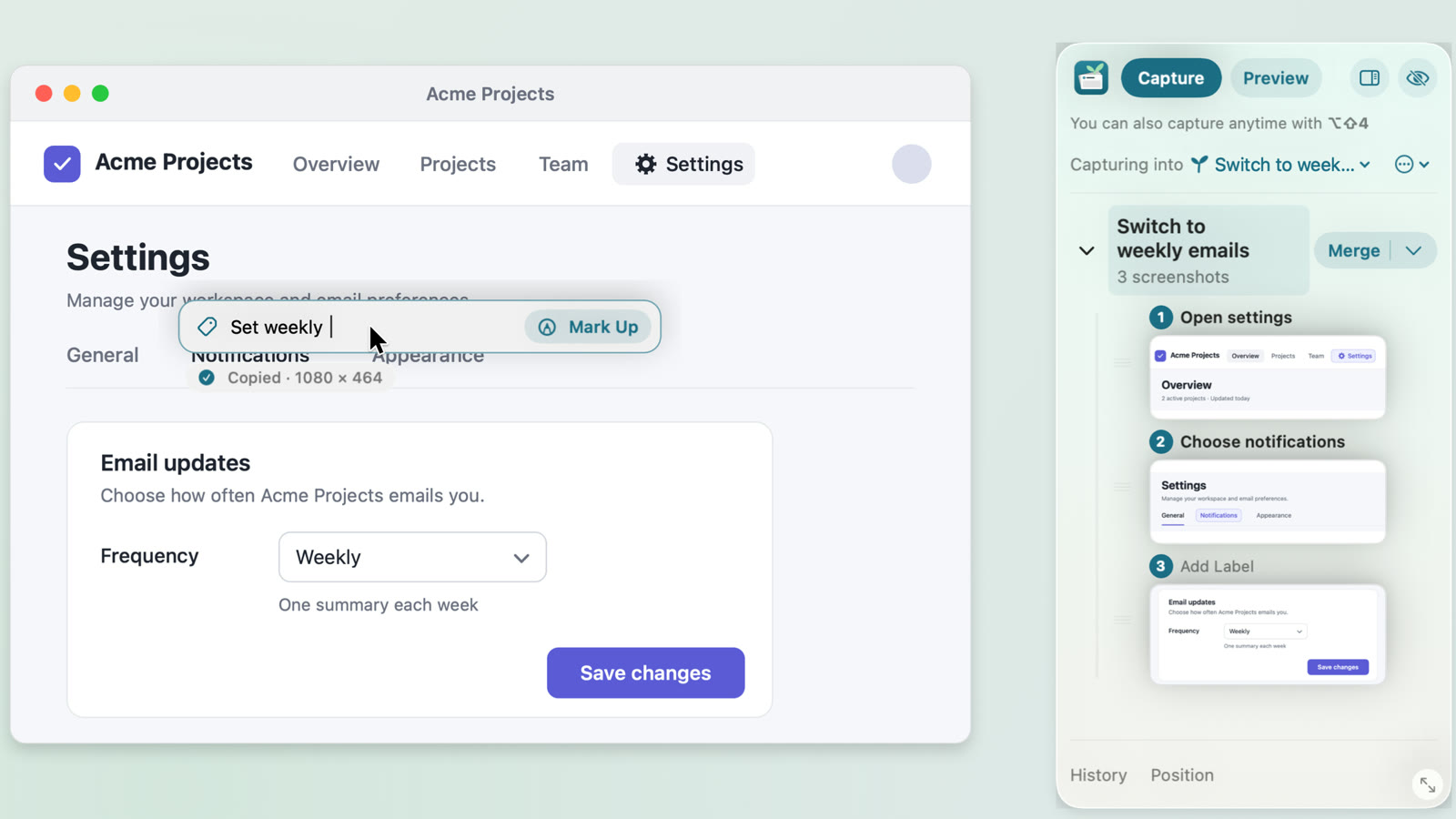
Need separate files instead? Click Preview at the top of the Trellis, then Share → Share Separate Images… and Choose App…: the screenshots go to that app as separate PNG files, in group order, though the app decides how to show them. If you use ⌘⇧4, turn on Settings → Collect Mac Screenshots (⌘⇧4)… and pick the folder your Mac saves to; new screenshots there join the group too.
What it doesn’t do: it doesn’t put several pictures on the clipboard at once; ⌥⇧C copies one image made from all of them. Merging needs the free trial or the unlock, and during the trial, merged images carry a small “Made with SnapTrellis” line. Capturing, labels, and copying single screenshots are always included. More on how SnapTrellis works.
Watch it: three screenshots, one paste
Video transcript
On their phone, someone writes to you: “How do I stop daily emails?” On a Mac, three screenshots of the fictional app Acme Projects are captured with ⌥⇧4 (Option-Shift-4) and labeled on the card beside each one: Open settings, Choose notifications, and Set weekly emails. Clicking Mark Up on the last card opens the editor, where marker A points to Save changes, with the note “Click Save changes to finish.” ⌥⇧C (Option-Shift-C) copies all three as one image, titled Switch to weekly emails. It’s pasted into a chat on the Mac with ⌘V and sent with Return. On their phone, the image arrives; they open it full screen, then reply: “Found it. Weekly is perfect.”
On-screen captions: They’re stuck on a step. Capture each step. Label as you go. Point out what matters. Copy all three as one image. One image. Every step. Numbered, labeled, and ready to read on a phone. Send a clear message. Now they see it. End card: SnapTrellis for Mac. Help them see the next step. Try it free on the Mac App Store. 14-day free trial · No subscription · Stays on your Mac.
Common questions
Can you copy multiple screenshots to the clipboard on a Mac?
Not one by one: each copy replaces the last, so the clipboard holds only your latest screenshot. You can copy several saved screenshots in one go by selecting them in Finder and pressing ⌘C. On macOS Tahoe 26 and later, Spotlight’s Clipboard history (⌘Space, then ⌘4), if it’s turned on, can bring back earlier copies, one at a time.
Why does only my last screenshot paste?
Because each screenshot you copy with ⌃⇧⌘4 replaces the one before it on the clipboard. To paste several, take them with ⌘⇧4 so they’re saved as files, then copy or drag them together from Finder, or combine them into one image first.
How do I paste several screenshots as one image?
Join them into one picture, then paste that. For free, the Shortcuts app’s Combine Images action joins screenshots you’ve saved. In SnapTrellis, screenshots join a group as you take them, and ⌥⇧C copies the whole group as one numbered, labeled image; merging is free for 14 days, then $19.99 once.
Sending them in a chat or an email? See how to send multiple screenshots so they make sense. Just one screenshot? See how to copy a screenshot to the clipboard on a Mac.
Free to download. Capturing, labels, and copying single screenshots are always included; merging a group is free for 14 days, then $19.99 once. No subscription. macOS 14 or later.