
A practical guide
How to send multiple screenshots so they make sense.
Five screenshots with no context are hard to follow, especially on a phone. Here’s how to send several at once from your Mac so they arrive in order, and the person reading knows what to look at.
Before you send: four quick habits
- Crop to what matters. A tight screenshot is readable on a phone. A whole screen usually isn’t.
- Number them. “See 2” is easier than “the second one, I think.”
- Say what to look at. One line per screenshot: what it shows, and what you need.
- Hide private details. Blur or cover names, email addresses, and account numbers before you send.
In an email
- In the message, click where each screenshot should go and paste it with ⌘V, or drag it in.
- Add one short line above each screenshot, like “1. The error after I click Save.”
- Sending more than a few? Put them in one PDF instead. Here’s how to combine screenshots into one PDF.
Pasting screenshots into the message keeps each one next to its explanation. Attachments at the bottom are easy to miss, and they’re often opened out of order.
In Slack or Microsoft Teams
- Select the screenshots in Finder and drag them into the message box together, so they post as one message.
- Before you send, type a numbered note: “1: the old price. 2: the new price. 3: the invoice.”
Posting them one at a time splits the conversation, and replies end up under the wrong screenshot.
In Messages or WhatsApp
Several screenshots arrive as a stack or grid of small pictures, and on a phone it’s hard to tell which one matters or what order they go in. Combine them into one image first, add numbers, and send it with a one-line explanation.
The one-image option
One combined image works everywhere: email, chat, a text, or a document. Your Mac has a free way to make one with Shortcuts, and there are faster ways if you do it often. Our guide compares them: 3 ways to combine screenshots on a Mac.
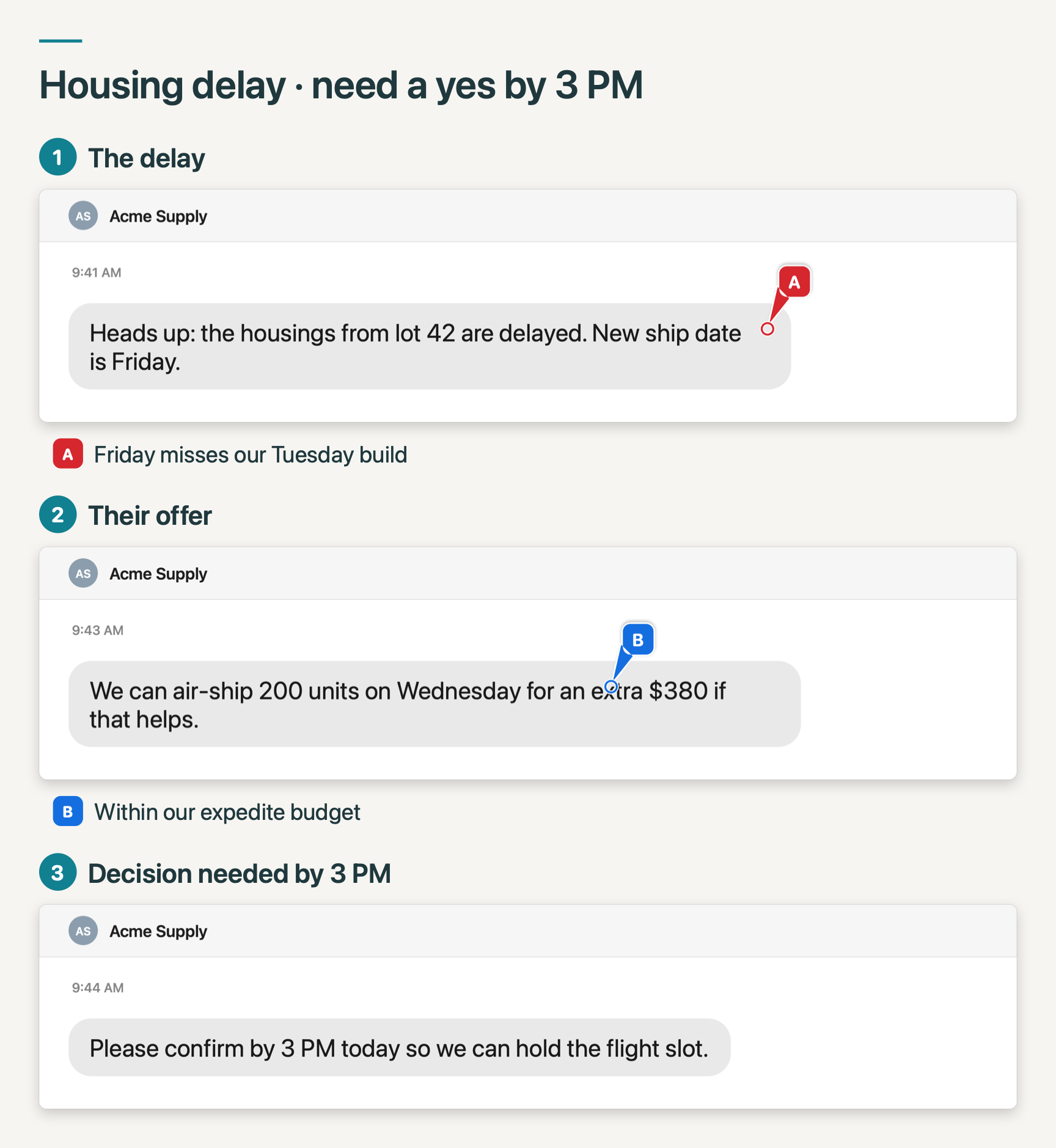
SnapTrellis does it while you capture. Each screenshot joins a group, you type a label on the card beside it, and ⌥⇧C copies the whole group as one numbered, labeled image, ready to paste.
Free for 14 days, then $19.99 once. No subscription. macOS 14 or later.