
A practical guide
How to blur or hide part of a screenshot on a Mac.
The Mac’s Markup tools, in Preview and in the screenshot window, have no blur. You can still hide a password, a name, or an account number for free by covering it with a solid box. Here’s how to do that safely, what not to do, and a faster way if you share private screenshots often.
1. The free way: cover it with a solid box
Free and built in. Safe for passwords and numbers, as long as the box is solid.
- Click the thumbnail right after you take the screenshot. Or open the screenshot in Preview and click the Show Markup Toolbar button (⇧⌘A).
- Click Shapes and choose the rectangle. Drag it over the detail you want to hide, and use the blue handles to fit it.
- Click Fill Color and choose black, or any solid color. Set Border Color to the same color.
- Click Done, or choose File → Save in Preview.
When you save an image, the box becomes part of the picture. Apple notes that you can’t edit, move, or delete annotations on an image after you save it, so what was under the box isn’t in the file you send. If you’ll need the original, choose File → Duplicate first and cover the copy.
What not to do
- Don’t use a see-through color or a highlighter. A semi-transparent box only darkens the text, and turning up the brightness can bring it back.
- Don’t scribble over it. Pen strokes leave gaps, and letters show through.
- Don’t trust blur or pixelation with passwords and numbers. Security researchers have shown that pixelated text can sometimes be reconstructed by matching the font, and their advice is to use solid black bars for text.
- Don’t send an editable file. A PDF, or a project file from an editing app, can keep the original underneath your box. Send a flat picture, like a PNG or JPEG.
- Look at the whole screenshot. Names and email addresses hide in browser tabs, notifications, and address bars. Zoom in on the final image before you send it.
Sharing a PDF? Use Preview’s Redact tool
In a PDF, a box drawn on top is an annotation that someone can remove. For PDFs, Preview has a Redaction Selection tool in the Markup toolbar that removes the text from view instead of covering it. Apple suggests redacting a duplicate, because redactions become permanent once you close the document.
2. Blur or hide in SnapTrellis
Free to download. Blur, Hide, and copying single screenshots are always included.
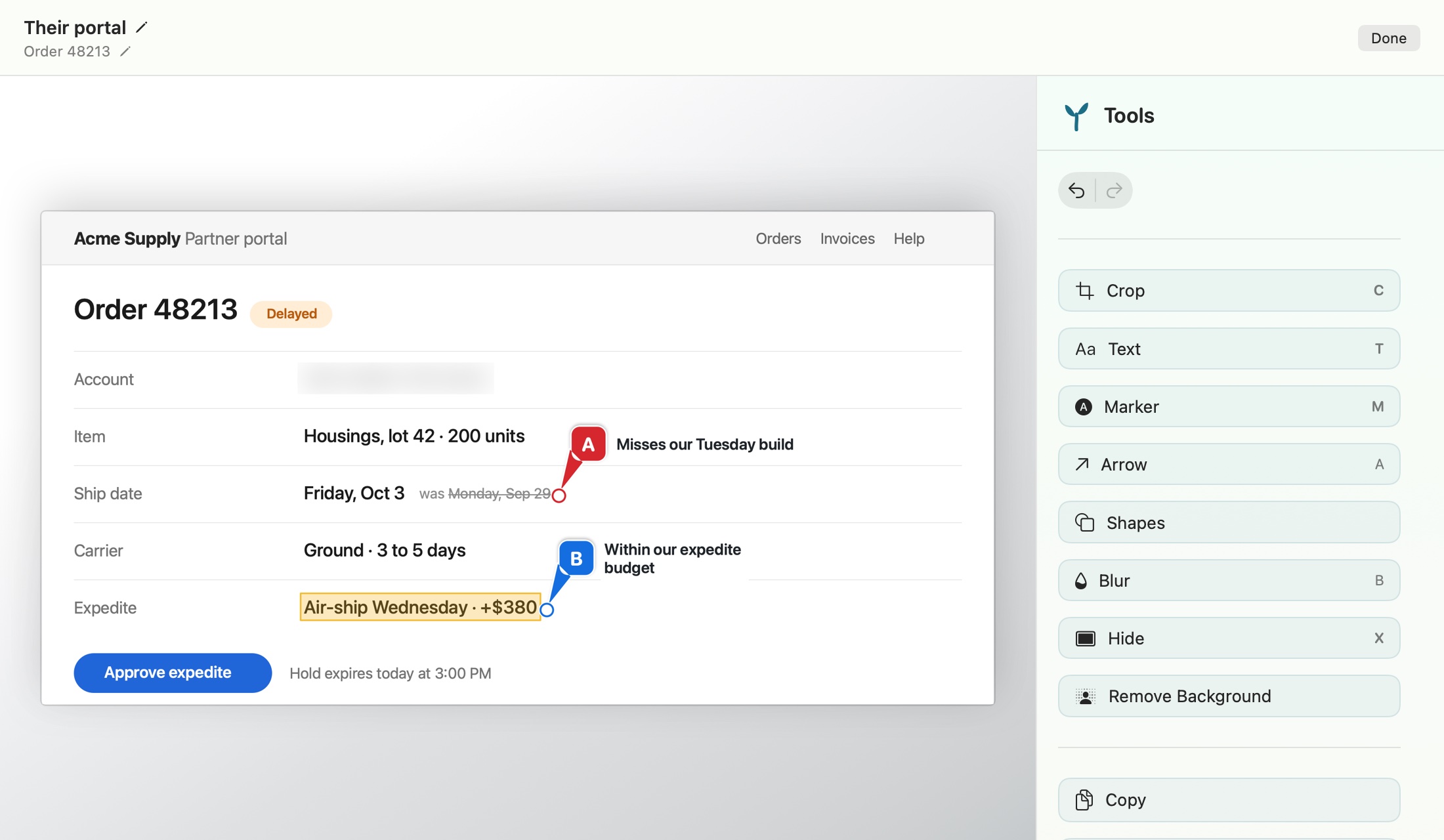
- Capture with ⌥⇧4, then click Mark Up on the card beside it. You can also click any screenshot in the Trellis.
- Press X and drag over anything that must not be read. Hide covers it with a solid box.
- Press B and drag over anything you’d rather soften, like a name in the background. SnapTrellis’s blur is strong, but use Hide for passwords and numbers.
- Click Copy or Share in the Tools panel. The box and the blur are part of the image you send.
Privacy details worth knowing:
- Each new capture is copied right away, before you’ve blurred anything. When you blur or hide, SnapTrellis replaces that copy with the edited version, unless you’ve copied something else since.
- For a run of private screenshots, turn on Capture to Sensitive Group in the menu bar icon’s menu. Sensitive screenshots are masked inside SnapTrellis and are never copied to the clipboard automatically. Masking isn’t encryption.
- Send the image, not an editable project. Editable projects include the originals, so anyone who receives one could uncover what you hid. SnapTrellis warns you before it shares one.
- Your screenshots stay on your Mac: there’s no account and no tracking. Read how SnapTrellis handles privacy.
Common questions
Does a Mac have a blur tool for screenshots?
No. Markup, in Preview and in the screenshot window, has shapes, text, and drawing tools, but no blur. Cover private details with a solid box, or use an app that has a blur tool.
Can blacked-out text be revealed?
Not if the box is fully solid and the image is saved as a flat picture, like a PNG or JPEG: the pixels under the box are replaced. It can be revealed if the box is see-through, or if the box is a separate layer in a PDF or an editable project.
Is blur safe enough?
For a face or a name in the background, a strong blur is usually fine. For passwords, account numbers, and anything someone might try to guess, use a solid box.
Which should you use?
For the occasional screenshot, a solid black box in Markup is free and safe. If you share screenshots with names, email addresses, and account numbers every day, SnapTrellis makes Hide and Blur one key each.
Other screenshot apps have blur tools too. Our comparison of ways to share screenshots from a Mac covers a few. Before sending several screenshots, see how to send multiple screenshots so they make sense.
Free to download. Blur, Hide, and single screenshots are always included; merging a group is free for 14 days, then $19.99 once. No subscription. macOS 14 or later.